
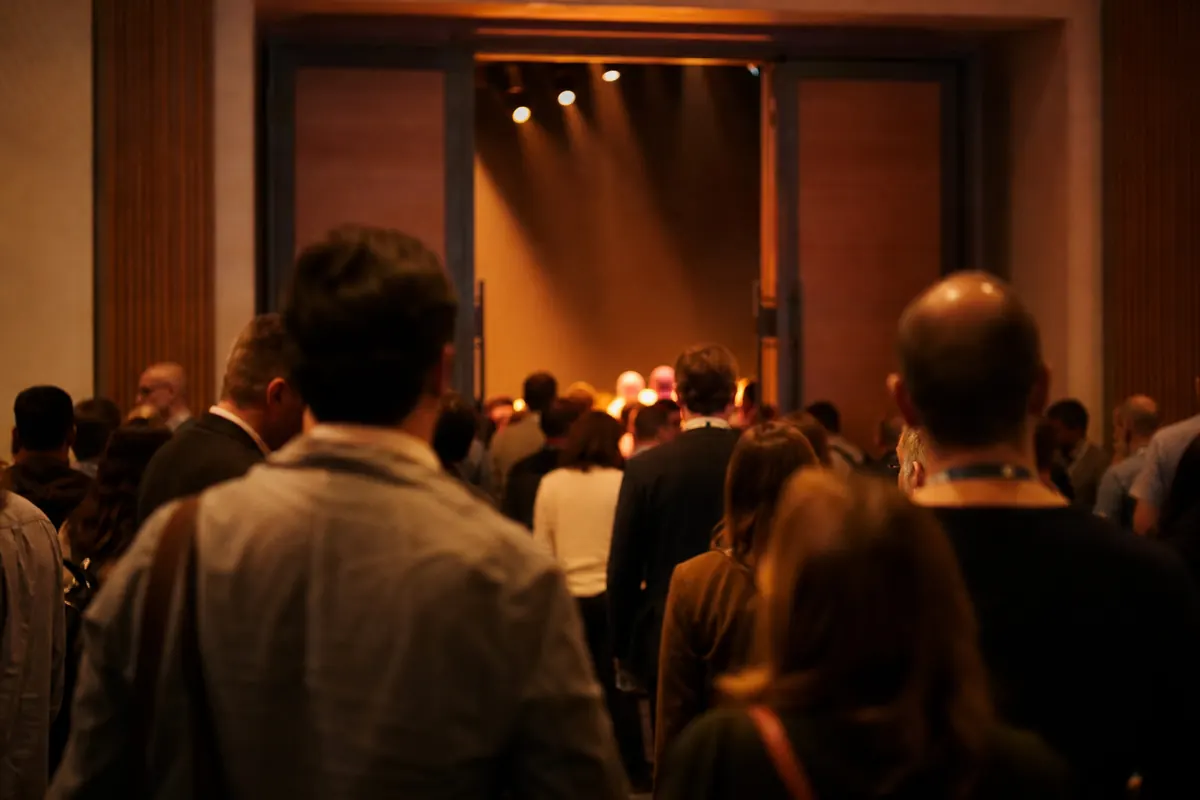
The line is the first thing your guests see
A face-painting tent at a school fair, a merch table after a show, a bakery that sells out of croissants by ten: these lines don't last long, but they still fail the usual way. People stand in a queue they can't see the end of, guess how long it will take, and leave. Whoever runs the stall spends the afternoon managing the crowd instead of serving it.
A virtual line fixes that. Instead of holding a spot by standing in it, each guest holds a number on their phone and goes off to do something else until it is their turn. waitlistn is a virtual line built for exactly these short-lived, high-energy lines at pop-ups, small businesses and events.
How it works
The host shows a QR code
The person running the line opens waitlistn on their own phone and puts the QR code where guests will see it: on a sign, on the table, or held up on the phone screen. That is the whole setup.
Guests scan to join
Each guest scans the code with their phone camera. They don't download an app or make an account. Their spot opens in the browser with their own number and a live place-in-line page that updates as the line moves.
The host calls them when it is their turn
When it is someone's turn, the host notifies them by text message, WhatsApp or email, or the guest simply watches their page. In the meantime they can browse the market, finish their drink or keep watching the show.
Running the line from one phone
The host side is one phone screen. It shows who is waiting. The host can swipe to notify or remove someone, call the next person, and add walk-ins by hand with a name, a party size and how to reach them. Someone without a phone can still join: add them by name and choose no notification.
For lines that run out, such as limited bakes, sneaker releases or signed copies, the host can set how many are available and a per-person limit. Guests see roughly what is left when they reach the front, which saves a lot of disappointment at the counter.
Where it fits
- Food trucks: customers order at the window, wait anywhere, and get a text when their food is ready.
- Restaurants: parties scan to join, see a quoted wait, and get a text when their table is ready.
- Salons and barbershops: walk-ins take the next chair or ask for a particular stylist or barber, and get a text before their turn.
- Bakery and product drops: a numbered line for limited stock, so nobody has to camp out.
- Merch tables and book signings: fans keep enjoying the event instead of standing in a second line.
- Sample sales: let shoppers in by group as the room frees up.
- One-day events: face painting, Halloween makeup stations and beauty pop-ups at markets and expos.
Bringing online sign-ups into the same line
If you also have a website, waitlistn gives you a snippet to paste into it. People who sign up online land in the same line you run in person, so there is one list, not two.
How it compares with the other tools here
waitlists.org points to a few tools, and each one fits a different job:
- The waitlist widget collects names before something launches.
- WaitlistApp runs an everyday walk-in queue for a business, with wait times, texts and a lobby screen.
- waitlistn is the quick version for a pop-up, a drop or a single event: show a code, let people scan in, call them up.
- Tally Counter counts how many people are inside a space against its capacity.
Getting started
You can try a line on the waitlistn homepage before choosing a plan. Hosts sign in with an emailed link or a passkey, so there is no password to remember on a busy day.
What you need before doors open
The setup footprint is deliberately small. Before your first guest arrives, you need three things:
- A phone or tablet for the host. Any modern smartphone with a browser works. There is no app to download on the host side, which matters when you are setting up a pop-up in a borrowed space or on borrowed time.
- A way to display the QR code. This can be as low-tech as a printed sheet in a plastic stand, a lanyard badge the host wears, or a tablet propped on a table. For outdoor markets, a laminated card survives light rain better than a paper printout.
- A name for your line. Guests see this when they scan, so something like "Saturday Tasting Room" or "VIP Fitting Queue — 2 PM" gives them immediate confidence they scanned the right code.
Most hosts complete the initial setup in under five minutes, which matters when load-in time is tight and the to-do list is long.
Choosing the right display format for your venue
The QR code is the only thing standing between a chaotic door and an orderly line, so how you display it deserves a moment of thought. A few proven approaches:
- Printed A5 or A6 card: Inexpensive and easy to swap if a code needs to change. Keep a spare in your event bag.
- Foam board sign: Visible from a distance at busy markets or festival entrances. Add a brief instruction like "Scan to hold your place — we'll text when you're up" so guests know exactly what to expect before they scan.
- Staff badge or lanyard insert: Works well for roving hosts at multi-zone events. Guests approach the host rather than a fixed point, which can reduce clustering at a single entrance.
- Second screen or dedicated tablet: If you have a front-of-house table, a tablet showing the QR code in a looping display removes any ambiguity about where to scan.
Running a test before the event
Event logistics professionals routinely recommend a pre-event walkthrough that mirrors the guest experience from arrival to entry. For a virtual queue, that means scanning your own QR code with a personal device, joining the line under a test name, and calling yourself forward — all before any guest is in sight. This catches display problems (a QR code printed too small, or placed where it catches glare) and gives any volunteer staff a chance to see exactly what guests will experience on their phones.
If you are bringing online pre-registrations into the same queue, run the merge test at this stage too. Confirm that pre-registered names appear correctly and that the host view shows a single, ordered list rather than two competing queues.
After the event
The line data that accumulates during an event — how many guests joined, average wait times, peak arrival windows — is practical intelligence for the next one. Understanding when your queue spiked tells you whether you need a second host position at that hour, a staggered entry system, or simply a more accurate arrival window in your pre-event communications. Small pop-ups rarely have the budget for a formal operations review, but even a five-minute debrief using the queue log can meaningfully improve the experience next time.